MCP Integration
Connect AI agents like Claude Code, Cursor, VS Code Copilot, OpenCode, Codex, Gemini CLI, and more to control your browser through the Model Context Protocol (MCP).
What is MCP?
The Model Context Protocol (MCP) is an open standard that allows AI applications to connect to external tools and data sources. Vibe's MCP integration lets multiple AI agents control your browser simultaneously.
Why Use Vibe MCP?
| Feature | Vibe MCP | Playwright MCP | BrowserMCP |
|---|---|---|---|
| Multi-Agent Support | Yes | No | No |
| Uses Your Browser Profile | Yes | No | No |
| Logged-In Sessions | Yes | No | No |
| No Separate Browser | Yes | No | No |
| Local & Private | Yes | Yes | Partial |
Key advantage: Vibe MCP is the only solution that supports multiple AI agents controlling the same browser simultaneously. Run Claude Desktop, Cursor, and VS Code all at once.
Remote MCP (no install)
The fastest way to connect: a hosted MCP endpoint at https://relay.api.vibebrowser.app/mcp. No Node.js, no npm, no local daemon — just a URL and one header.
Get your remote session id
- Install the Vibe extension and open Settings
- Go to AI Agent Control → Remote (internet)
- Enable remote access, then click Copy under MCP connector URL (HTTPS). That copied URL —
https://relay.api.vibebrowser.app/mcp/<uuid>— is what hosted agents need; do not retype the bare session id by hand. (For the header form below, the session id is the last path segment of that URL.)
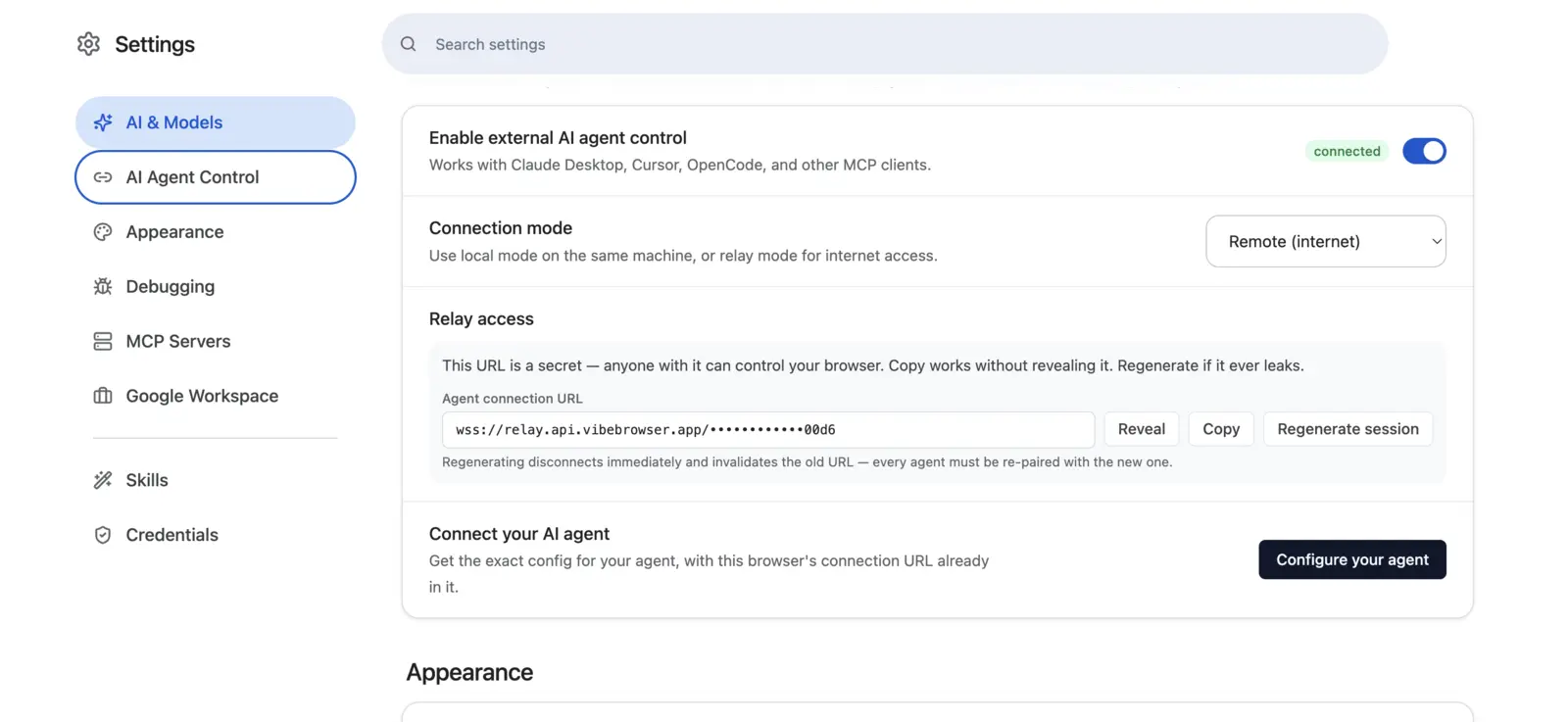
The URL is masked on screen; Copy writes the real value. Regenerate session invalidates the old one immediately, so every agent has to be re-paired.
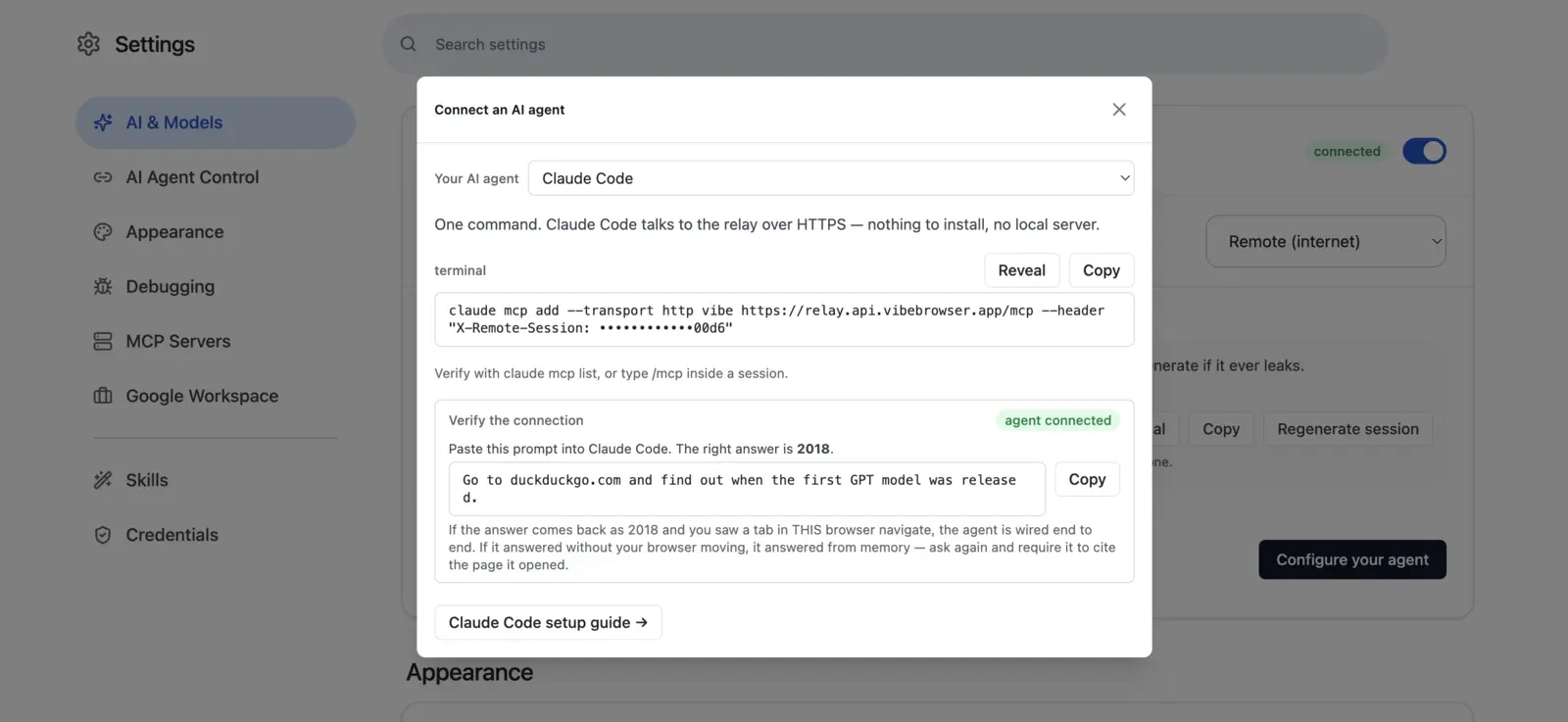
Rather than copying by hand, click Configure your agent and pick your agent — the dialog renders the exact config with your session id already in it, plus a prompt that proves the agent really drove your browser.
Claude Code
claude mcp add --transport http vibebrowser https://relay.api.vibebrowser.app/mcp --header "X-Remote-Session: <uuid>"
Run /mcp in Claude Code to verify the connection.
Claude Cowork, Claude Desktop and Codex Desktop (ChatGPT desktop app) — direct HTTP connector
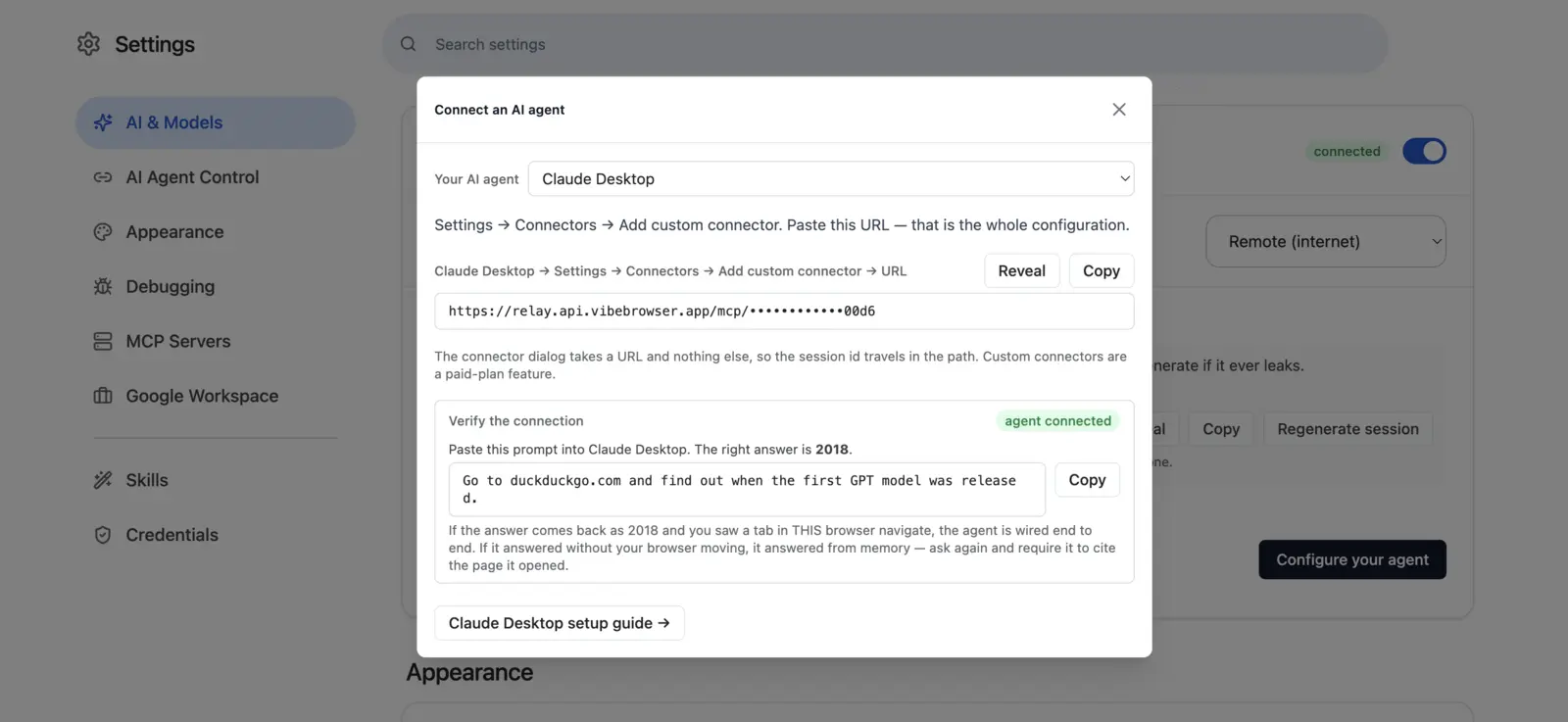
These three take a URL and nothing else: no install, no header, no sign-in step. Copy your connector URL from Settings → AI Agent Control → Remote (internet) → MCP connector URL (HTTPS):
https://relay.api.vibebrowser.app/mcp/<uuid>
- Claude Cowork — Settings → Connectors → Add → Add custom connector → paste the URL.
- Claude Desktop — Settings → Connectors → Add custom connector → paste the URL.
- Codex Desktop (ChatGPT desktop app) — run:
codex mcp add vibe --url https://relay.api.vibebrowser.app/mcp/<uuid>
The Codex CLI (codex mcp add --url, whose only auth flag is --bearer-token-env-var) uses the same form. The server is registered as vibe.
Already added a Vibe connector before? If you set it up through a consent or sign-in screen, that connector no longer works. Remove it first — in Claude: Settings → Connectors → remove Vibe; in Codex Desktop: delete the old vibe entry from ~/.codex/config.toml — then add it again with the direct connector URL above.
Prefer the header form where your client supports it: it keeps the credential out of URLs, shell history and browser history.
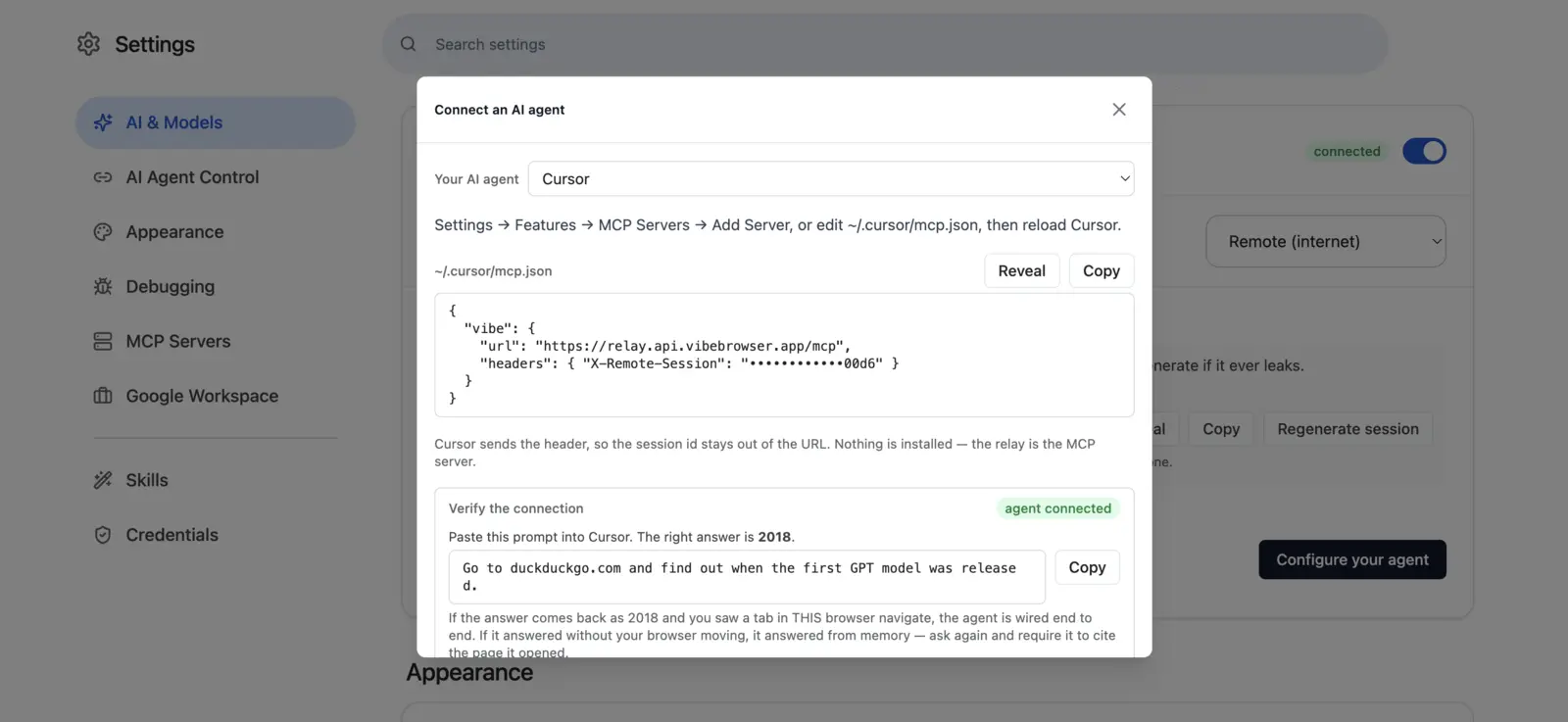
Cursor / VS Code / other JSON-configured clients
{
  "mcpServers": {
    "vibebrowser": {
      "url": "https://relay.api.vibebrowser.app/mcp",
      "headers": { "X-Remote-Session": "<uuid>" }
    }
  }
}
If your client can only set an Authorization header, use Authorization: Bearer <uuid> instead of X-Remote-Session.
OpenClaw and Hermes — not MCP clients
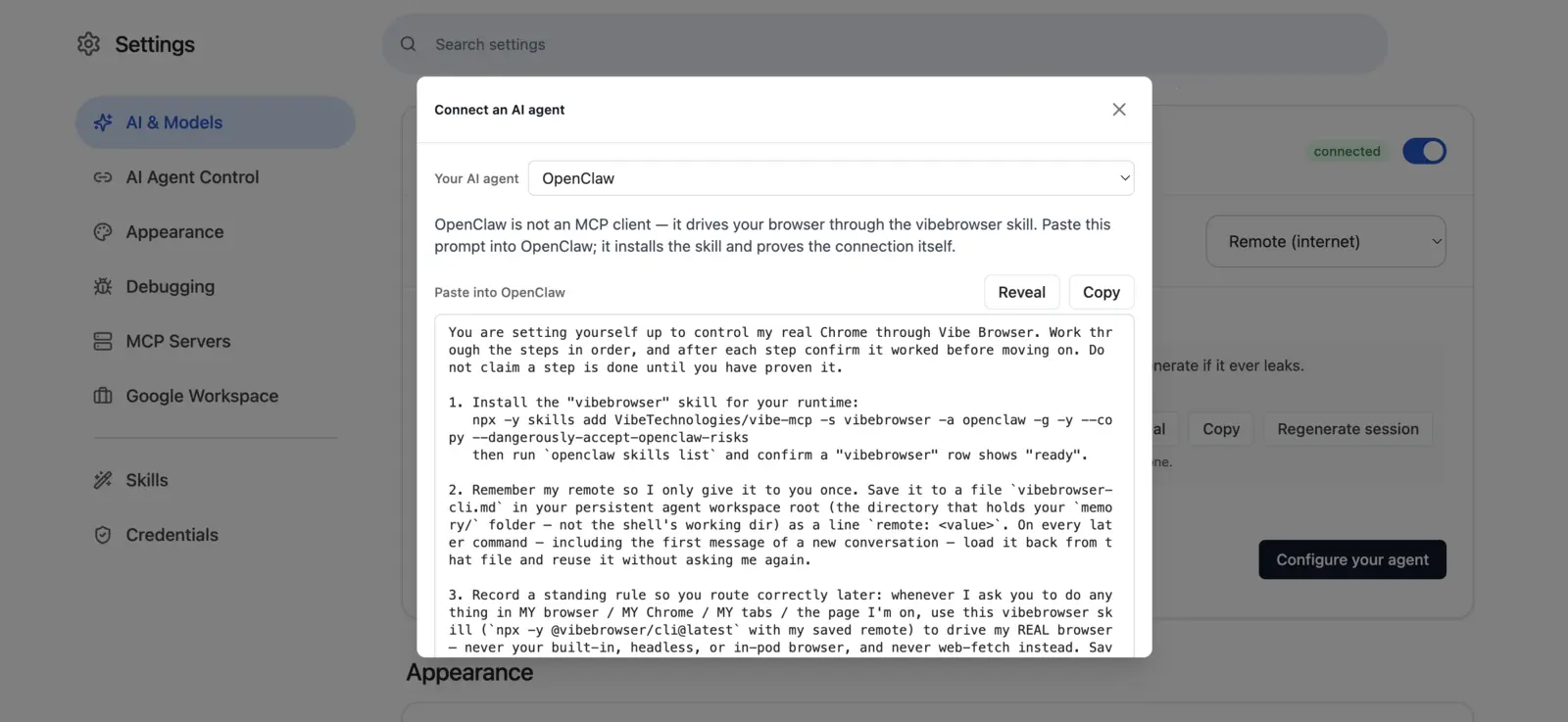
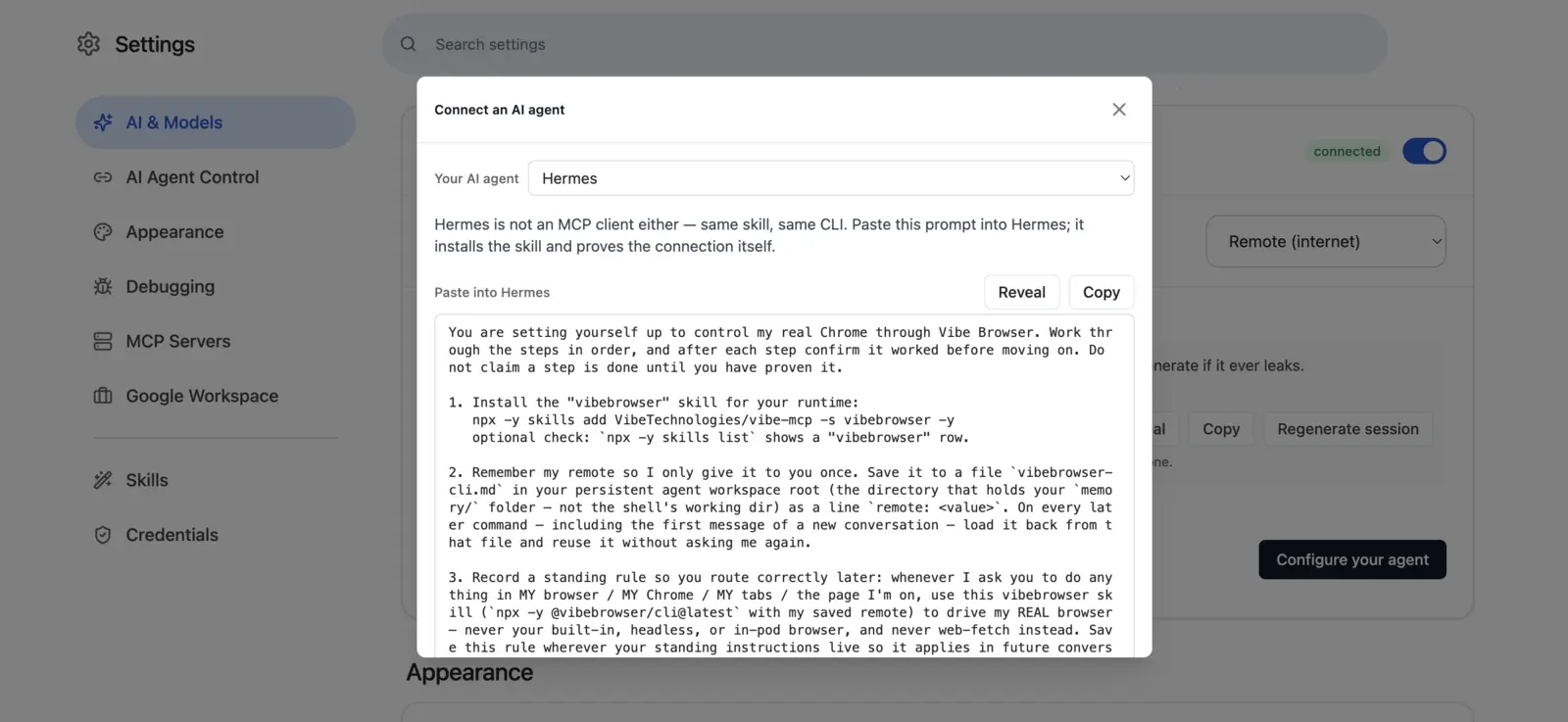
Neither reads an MCP server config. They install the vibebrowser skill and drive the browser through @vibebrowser/cli, so their configuration is a prompt you paste into the agent. Extension Settings → AI Agent Control → Configure your agent generates it with your remote already filled in; the source is vibe-mcp/README.md.
Notes
- The extension must be running (Chrome open, remote access enabled) for
tools/listandtools/call. If it is offline, the endpoint returns a JSON-RPC error asking you to open Chrome and check Settings → AI Agent Control → Remote. - Treat the session id like a credential: anyone who has it can control your browser. Regenerate your identity in extension settings if it leaks.
- The local
npxrelay below remains available as the lowest-latency, fully local option.
Current Limitation: Multiple Browsers
The local vibebrowser-mcp relay currently models one connected extension session, not an explicit browser selector.
- If you enable MCP External Control in more than one browser or profile on the same machine, browser targeting is undefined.
tabs/list_pagesshow the tabs from whichever extension session currently owns the relay connection.open,navigate,new_page, and other commands run against that same session.- If you observe one command affecting more than one browser, treat that as a bug rather than supported behavior.
Current workaround:
- Enable MCP External Control in only one browser/profile per relay port.
- If you need to target a specific extension instance, use remote mode with an explicit UUID instead of the default local relay path.
Local Relay Setup (npx, advanced)
Prefer the Remote MCP endpoint above for the quickest setup. The local npx relay is the advanced option: it runs entirely on your machine (ports 19888/19889) and has the lowest latency.
Step 1: Install the Vibe Extension
Follow the extension installation guide to install Vibe in your browser.
Step 2: Enable MCP External Control
- Click the Vibe extension icon in your browser toolbar
- Open Settings
- Scroll to the MCP External Control section
- Toggle Enable MCP External Control to ON
- The status should show "Connected" with a green indicator
Step 3: Configure Your AI Application
Add the Vibe MCP server to your AI application's configuration.
Configuration by AI Client (local relay)
The snippets below configure the local npx relay. For the no-install remote endpoint, see Remote MCP (no install).
Claude Code (claude-code)
Option 1: Use the CLI (recommended):
claude mcp add --transport stdio vibe -- npx -y --package @vibebrowser/mcp vibebrowser-mcp
Option 2: Project-level .mcp.json (for team sharing):
{
  "mcpServers": {
    "vibe": {
      "command": "npx",
      "args": ["-y", "--package", "@vibebrowser/mcp", "vibebrowser-mcp"]
    }
  }
}
Option 3: User-level config in ~/.claude.json:
{
  "mcpServers": {
    "vibe": {
      "command": "npx",
      "args": ["-y", "--package", "@vibebrowser/mcp", "vibebrowser-mcp"]
    }
  }
}
After adding, run /mcp in Claude Code to verify the connection.
See Claude Code MCP docs for more options.
OpenCode
Add to your opencode.json (or opencode.jsonc) in your project root:
{
  "$schema": "https://opencode.ai/config.json",
  "mcp": {
    "vibe": {
      "type": "local",
      "command": ["npx", "-y", "--package", "@vibebrowser/mcp", "vibebrowser-mcp"],
      "enabled": true
    }
  }
}
Or add via CLI:
opencode mcp add vibe -- npx -y --package @vibebrowser/mcp vibebrowser-mcp
See OpenCode MCP docs for more options.
Cursor
- Open Cursor Settings (
Cmd/Ctrl + ,) - Go to Features → MCP Servers
- Click Add Server and add:
{
  "vibe": {
    "command": "npx",
    "args": ["-y", "--package", "@vibebrowser/mcp", "vibebrowser-mcp"]
  }
}
Or edit ~/.cursor/mcp.json directly.
Claude Desktop
Edit your Claude Desktop config file:
macOS: ~/Library/Application Support/Claude/claude_desktop_config.json
Windows: %APPDATA%\Claude\claude_desktop_config.json
{
  "mcpServers": {
    "vibe": {
      "command": "npx",
      "args": ["-y", "--package", "@vibebrowser/mcp", "vibebrowser-mcp"]
    }
  }
}
Restart Claude Desktop after saving.
See MCP Quickstart for more details.
VS Code (GitHub Copilot)
Add to your VS Code settings.json:
{
  "github.copilot.chat.mcpServers": {
    "vibe": {
      "command": "npx",
      "args": ["-y", "--package", "@vibebrowser/mcp", "vibebrowser-mcp"]
    }
  }
}
Windsurf
Edit ~/.codeium/windsurf/mcp_config.json:
{
  "mcpServers": {
    "vibe": {
      "command": "npx",
      "args": ["-y", "--package", "@vibebrowser/mcp", "vibebrowser-mcp"]
    }
  }
}
See Windsurf MCP docs for more options.
Gemini CLI
Option 1: Use the CLI:
gemini mcp add vibe -- npx -y --package @vibebrowser/mcp vibebrowser-mcp
Option 2: Add to ~/.gemini/settings.json:
{
  "mcpServers": {
    "vibe": {
      "command": "npx",
      "args": ["-y", "--package", "@vibebrowser/mcp", "vibebrowser-mcp"]
    }
  }
}
See Gemini CLI MCP docs for more options.
Codex (OpenAI)
Option 1: Use the CLI (recommended):
codex mcp add vibe -- npx -y --package @vibebrowser/mcp vibebrowser-mcp
Option 2: Add to ~/.codex/config.toml:
[mcp_servers.vibe]
command = "npx"
args = ["-y", "--package", "@vibebrowser/mcp", "vibebrowser-mcp"]
See Codex MCP docs for more options.
Available Tools
When connected, AI agents have access to the following browser automation tools:
Navigation Tools
| Tool | Description |
|---|---|
navigate_page | Navigate to a URL, or move back/forward/reload |
Tab Management Tools
| Tool | Description |
|---|---|
list_pages | List open browser pages/tabs |
new_page | Open a new page, optionally with a URL |
close_page | Close a specific page by ID |
Interaction Tools (Index-Based)
| Tool | Description |
|---|---|
click | Click an element by canonical ref from page snapshot |
fill | Fill a field by canonical ref from page snapshot |
fill_form | Fill multiple fields in one call |
type_text | Type into the focused input |
scroll_page | Scroll the page up or down |
media_control | Control video/audio elements (play, pause, mute, etc.) |
Advanced Interaction Tools
| Tool | Description |
|---|---|
press_key | Send keyboard input (Enter, Escape, Tab, shortcuts, etc.) |
hover | Hover over an element to trigger tooltips or menus |
drag | Drag from one point/element to another |
Page Inspection & Debug Tools
| Tool | Description |
|---|---|
take_screenshot | Take a screenshot of the current page |
take_snapshot | Extract page snapshot (format="markdown" default, format="accessibility_tree" for accessibility tree refs, format="aria" for ARIA tree) |
take_html_snapshot | Extract indexed HTML from the current page |
evaluate_script | Run a JavaScript function in the page context |
list_network_requests | List recent network requests for a page/tab |
get_network_request | Get details for one captured network request |
Utility Tools
| Tool | Description |
|---|---|
wait | Wait for a specified duration (useful for page loads) |
Google Workspace Tools
These tools require Google Workspace connection in Settings:
| Tool | Description |
|---|---|
gmail_search | Search emails in Gmail |
gmail_get_message | Get a specific email message |
gmail_get_thread | Get an email thread |
gmail_create_draft | Create a draft email |
gmail_send_message | Send an email |
calendar_view | View calendar events |
calendar_create | Create a calendar event |
Architecture
Claude Code      Cursor          VS Code        Codex       Gemini CLI
     |                  |                |            |             |
     v                  v                v            v             v
 [vibebrowser-mcp] [vibebrowser-mcp] [vibebrowser-mcp] [vibebrowser-mcp] [vibebrowser-mcp]
     |                  |                |            |             |
     +------------------+----------------+------------+-------------+
                        |
                        v
                  [Relay Daemon]  <-- Auto-spawned, handles multiplexing
                        |
                        v
                 [Vibe Extension]
                        |
                        v
                   [Your Chrome]
The relay daemon automatically starts when the first MCP client connects and handles multiplexing requests from multiple AI agents to a single browser extension.
Important: this multiplexing is agent-level, not browser-selection-level. Multiple agents can share one connected browser session, but the local relay does not yet expose a first-class way to pick between multiple browsers that all have the extension enabled.
Troubleshooting
"No connection to Vibe extension"
- Make sure the Vibe extension is installed in Chrome
- Click the extension icon and enable "MCP External Control" in Settings
- Check that the status shows "Connected"
Extension shows "Disconnected"
The extension reconnects automatically every 30 seconds. You can also:
- Toggle MCP External Control OFF and ON again
- Reload the extension from
chrome://extensions
Port conflicts
Vibe MCP uses ports 19888 (agents) and 19889 (extension). If you have conflicts:
{
  "mcpServers": {
    "vibe": {
      "command": "npx",
      "args": ["-y", "--package", "@vibebrowser/mcp", "vibebrowser-mcp", "--port", "19999"]
    }
  }
}
Make sure to update the port in extension settings to match.
Multiple browsers are open
If Chrome, Brave, or multiple browser profiles all have Vibe MCP External Control enabled, the local relay does not currently guarantee which browser session vibebrowser-mcp or vibebrowser-cli will target.
Today, the safe setup is:
- Enable MCP External Control in one browser/profile only.
- Disable it in the others, or point them at different relay ports.
- Use remote mode with an explicit UUID when you need deliberate browser-instance selection.
Debug mode
Enable debug logging to diagnose issues:
{
  "mcpServers": {
    "vibe": {
      "command": "npx",
      "args": ["-y", "--package", "@vibebrowser/mcp", "vibebrowser-mcp", "--debug"]
    }
  }
}